

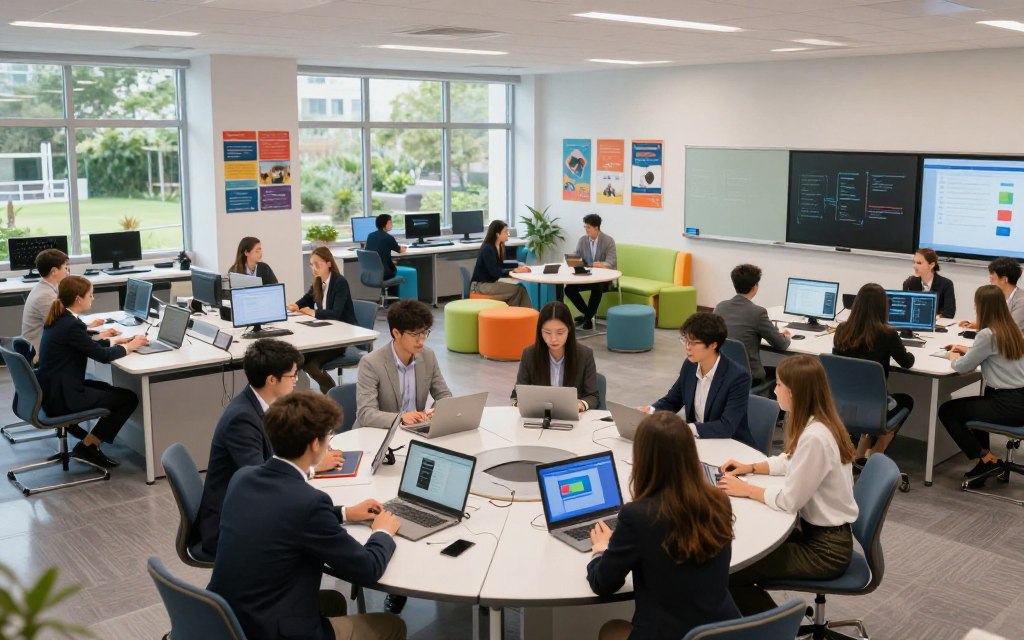
What is a technology classroom? It is more than a room filled with computers. It is a lively learning space with digital devices, interactive displays, and classroom management systems. This classroom technology improves instruction, teamwork, and access while supporting personalized learning.
Modern learning spaces go beyond traditional classroom setups. They use flexible designs for different teaching methods and learning styles. Effective educational technology supports good teaching without replacing educators.
This article explores the essential parts of a technology classroom, including hardware infrastructure, cloud platforms, student devices, and teacher tools. It also covers smart boards, network requirements, classroom layout, and challenges during implementation. Together, these elements create effective learning environments in American schools, colleges, and training centers.
Key Takeaways
- A technology classroom integrates digital tools to enhance learning.
- Flexible designs support various teaching methods and learning styles.
- Educational technology should complement, not replace, educators.
- Key components include hardware, software, and classroom layout.
- Modern learning spaces foster collaboration and personalized education.
1. What Is a Technology Classroom? A Clear Definition
Today’s classrooms are becoming active, technology-driven spaces. A technology classroom uses digital tools and resources to improve learning. This digital classroom definition differs from traditional rooms with printed books and chalkboards, using digital tools for interactive, engaging, technology-enabled learning.
The traditional versus digital classroom shift reflects major changes in education. Before, students mainly heard one-way lectures and used physical materials. Now, they benefit from:
- Multimedia instruction that includes videos and interactive content.
- Online research opportunities that encourage exploration beyond textbooks.
- Real-time feedback through digital assessments and collaborative tools.
Technology classrooms share several key features:
- Reliable connectivity for seamless access to online resources.
- Shared and individual devices that cater to diverse learning needs.
- Accessible learning materials that support various learning styles.
- Cloud-based collaboration tools that facilitate teamwork.
- Data-informed instruction that enhances teaching strategies.
- Strong privacy and cybersecurity practices to protect student information.
Technology classrooms can vary widely. Some connected classrooms use shared Chromebooks and a learning management system; others use interactive displays, tablets, or specialized lab equipment. Intentional instructional technology integration, not device cost or quantity, serves learning goals; teachers instruct, facilitate, evaluate, and guide responsible citizenship.
2. Core Components of a Modern Technology Classroom
Understanding classroom technology infrastructure helps schools build an engaging learning space. These parts help teachers and students succeed in a digital setting. The three main layers are hardware infrastructure, software ecosystem, and connectivity.
Hardware Infrastructure
Hardware infrastructure forms the backbone of any technology classroom. It includes:
Related Posts:




- Teacher workstations
- Student devices (laptops, tablets)
- Displays and interactive whiteboards
- Document cameras and microphones
- Speakers and charging equipment
- Printers and accessibility hardware
Each hardware item supports effective lessons. Interactive displays engage students, while document cameras strengthen visual learning. Without a strong setup, educational software cannot reach its full potential.
Software Ecosystem
The software ecosystem includes applications that support learning and classroom management. Key elements include:
- Learning Management Systems (LMS)
- Productivity suites (e.g., Google Workspace, Microsoft 365)
- Assessment applications
- Content libraries
- Classroom management tools
- Device administration systems
- Security software
These tools support teaching strategies and help teachers manage classroom activities. Advanced software also needs compatible hardware to work well. A planned education software ecosystem helps schools improve learning results.
Connectivity and Network Requirements
Connectivity is the third pillar of a technology classroom. It involves:
- High-speed internet access
- Reliable Wi-Fi coverage
- Sufficient bandwidth for multiple devices
- Secure authentication and network segmentation
- Content filtering and access policies
- Backup procedures for data security
Strong network infrastructure is crucial. If connectivity fails, even the best hardware and software stop working. Careful planning for school network requirements helps digital learning infrastructure support lessons without interruption.
Together, these layers show why schools need coordinated planning for classroom IT systems. Schools must check device compatibility, operating system support, and software licensing for a smooth learning experience. A weakness in one layer can undermine the others, so schools need a complete approach.
| Component | Importance | Examples |
|---|---|---|
| Hardware Infrastructure | Essential for delivering lessons | Displays, student devices |
| Software Ecosystem | Facilitates learning and management | LMS, productivity suites |
| Connectivity | Enables seamless access to resources | High-speed internet, Wi-Fi |
3. Essential Hardware Tools in Modern Learning Spaces
Today’s learning spaces depend on the right classroom hardware tools. These tools support clear instruction and encourage active student participation. This section examines three essential tools that are changing modern classrooms.
Interactive Whiteboards and Displays
Interactive whiteboards and large-format displays are central to modern classrooms. An interactive classroom display lets teachers present lessons, write notes, and show videos. Teachers can model problem-solving and invite students to explore visual materials with educational display technology.
Document Cameras and Visualizers
A document camera for teaching is a valuable classroom tool. It lets educators show books, handwritten work, and physical objects to the whole class. Students get a clear view of demonstrations and science experiments, making lessons more engaging.
Audio Systems and Classroom Microphones
A classroom audio system is essential, especially in large rooms or spaces with poor acoustics. It typically includes teacher microphones, student microphones, and speakers. It helps every student hear instructions clearly, which supports effective learning.
| Hardware Tool | Key Features | Benefits |
|---|---|---|
| Interactive Whiteboards | Touchscreen, annotation tools | Enhances student engagement |
| Document Cameras | High-resolution display, zoom capabilities | Facilitates clear demonstrations |
| Audio Systems | Microphones, speakers | Improves sound clarity for all students |
When selecting classroom hardware tools, consider room size, curriculum needs, and accessibility requirements. Separate essential functions from extra features to support sustainable purchasing decisions. Chosen tools should work well and connect smoothly with existing laptops or student devices.
4. Software and Digital Platforms Powering Today’s Classrooms
Today, software and digital platforms turn traditional classrooms into active learning spaces. These tools improve collaboration, simplify communication, and support personalized learning. Together, they give educators a clear framework for teaching and learning.
Learning Management Systems (LMS)
Learning Management Systems (LMS) form the backbone of modern classroom software. A learning management system for schools gives users one place for course materials, assignments, announcements, discussions, grades, and feedback. An LMS helps teachers organize lessons, track student progress, and communicate with students.
Educational Apps and Digital Textbooks
Educational apps and digital textbooks offer many resources, including multimedia explanations, practice activities, and simulations. These tools support different learning styles through language support, adaptive pathways, and accessibility options like text-to-speech. Together, they help educators build a rich curriculum that meets the needs of all students.
Productivity Tools for Students
Student productivity tools help students stay organized and work efficiently in class. They include word processors, presentation software, spreadsheets, digital notebooks, calendars, task managers, and file-sharing applications. Choose tools that match curriculum standards and instructional objectives, while checking single sign-on, roster synchronization, data privacy, and accessibility compliance.
Consistent routines for naming files, submitting work, and communicating online help keep classrooms organized. Software should simplify learning, make progress measurable, and avoid unnecessary administrative complexity. These digital platforms can increase student engagement and streamline teaching.
5. Interactive Learning Technologies and Smart Boards
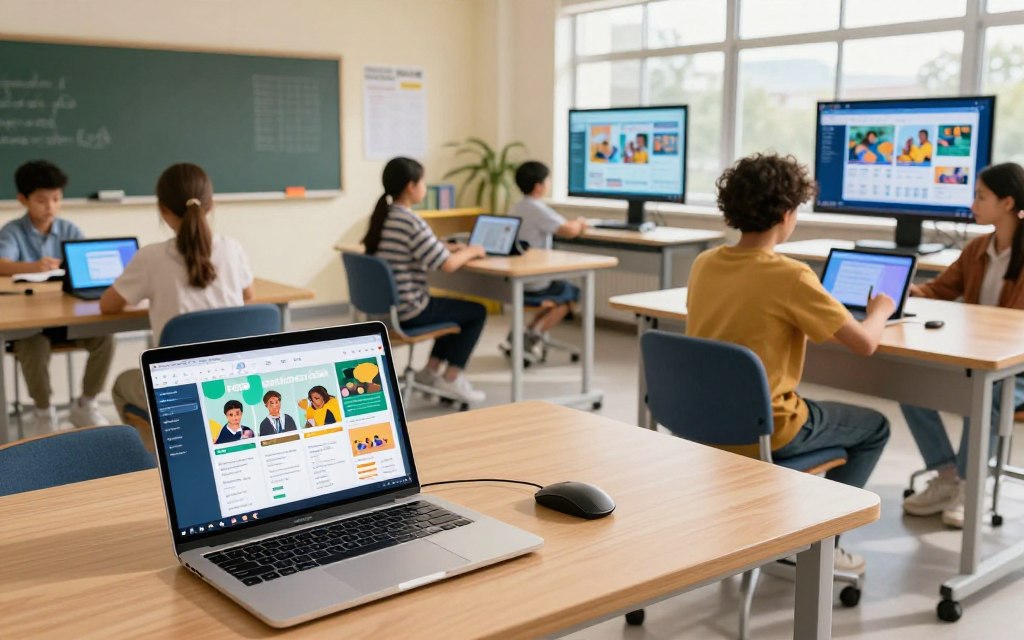
In technology-driven classrooms, interactive learning technology boosts student engagement and teamwork. Among these tools, SMART Boards and Promethean ActivPanels support active learning.
SMART Boards and Promethean ActivPanels
A SMART Board can change traditional classrooms with touch tools for teachers and students. It supports notes, multimedia, and lesson presentations, making learning more active. A Promethean ActivPanel offers a simple interface that supports student collaboration. Both systems let several users interact at once, building teamwork and shared learning.
Touch-Enabled Displays and Collaboration Screens
Touch-enabled displays, including a collaboration screen, help students work together on classroom tasks. They support diagrams, equations, and project plans while making lessons more engaging. Students can mark and move content in real time, which makes learning more interactive.
Comparison of Leading Smart Board Brands
Schools should compare SMART Boards and Promethean ActivPanels using several factors:
- Screen Size: Evaluate the available sizes to fit your classroom layout.
- Touch Responsiveness: Test how quickly and accurately the boards respond to touch.
- Pen and Annotation Capabilities: Look for features that enhance the ability to annotate and draw.
- Built-in Operating System: Consider which OS offers the best compatibility with your existing tools.
- Content-Sharing Options: Ensure the board allows easy sharing of content across devices.
- Device Compatibility: Check if the board works well with various student devices.
- Classroom Management Integration: Look for features that assist teachers in managing the classroom effectively.
- Accessibility Features: Ensure the board is usable for all students, including those with disabilities.
- Warranty and Installation: Review warranty options and installation services provided.
- Total Cost of Ownership: Analyze the long-term costs associated with each option.
Schools should demonstrate both options with teachers and students before buying. This helps ensure the technology supports their educational goals.
To get the most from a smart board classroom, design lessons around interaction. Using a costly display only as a projection screen reduces its learning value.
Check glare, viewing angles, and mounting height for easier use. Clean the display often and keep cables accessible to maintain a working classroom.
The Role of Cloud Computing and Collaboration Tools
Cloud computing helps modern classrooms support clear communication and resource sharing. Students and educators can access files, assignments, and applications at school, home, or other approved locations. Cloud computing in education helps institutions work flexibly and makes learning more accessible.
Google Workspace for Education
Google Workspace for Education offers a broad set of tools that improve learning. It includes Google Classroom, Docs, Slides, Sheets, Drive, and Meet. Educators can create interactive lessons, assign tasks, and give real-time feedback.
According to a recent study, “The use of Google Workspace in classrooms significantly boosts student engagement and collaboration.” This platform also provides administrative controls for a secure student environment.
Microsoft 365 Education
Microsoft 365 Education offers strong tools for teaching and learning. It includes Teams, OneDrive, Word, PowerPoint, Excel, and OneNote. Educators can support collaboration and improve communication with these tools.
They support shared resources and group projects, so all students can participate. Schools often choose between Google Workspace and Microsoft 365 based on existing infrastructure and staff expertise within a school district.
Real-Time Collaboration Platforms
Online collaboration tools help students build teamwork. Shared documents, comments, and co-editing let students work together from different locations. Virtual meetings and peer reviews improve learning through quick feedback from teachers and classmates.
Schools must set responsible-use rules for account security, strong passwords, and data privacy.
| Feature | Google Workspace for Education | Microsoft 365 Education |
|---|---|---|
| Real-Time Collaboration | Yes | Yes |
| Video Conferencing | Google Meet | Microsoft Teams |
| Document Sharing | Google Drive | OneDrive |
| Administrative Controls | Yes | Yes |
Cloud tools support project-based learning and ensure continuity during absences or remote instruction. Reliable internet access and clear backup procedures help maximize benefits in a cloud-based classroom. For more on cloud computing in education, read this resource.
7. Student Devices: Chromebooks, Tablets, and Laptops
Today’s student devices for schools can shape learning outcomes. Each type serves different needs, so teachers should understand its strengths. This section covers Chromebooks in K-12, iPads for education, and Windows laptops for students.
Google Chromebooks in K-12 Classrooms
Chromebooks in K-12 schools are popular because they are simple and effective. They work well with browser-based apps and support several classroom needs:
- Google Workspace integration: Chromebooks excel in environments that utilize Google’s suite of educational tools.
- Online assessments: Their fast boot-up times and ease of use support efficient testing processes.
- One-to-one device programs: Many schools implement these programs, providing each student with a Chromebook for personalized learning.
Apple iPads for Education
iPads for education are versatile and easy to use. They work well for creative projects and interactive learning. Key benefits include:
- Portability: iPads are lightweight and easy to carry, making them suitable for various classroom activities.
- Creative tools: They support applications for drawing, video production, and augmented reality.
- Accessibility features: iPads offer tools that enhance learning for students with different needs.
Windows Laptops and Microsoft Surface Devices
Windows laptops for students, including Microsoft Surface devices, suit schools using Microsoft 365 and desktop apps. They offer several advantages:
- Robust software support: These devices can run specialized software for coding, engineering, and other advanced tasks.
- Durability and repairability: Many models are built to withstand daily use in educational settings.
- Keyboard usability: Laptops typically offer a full keyboard, which is beneficial for writing and coding tasks.
Schools should compare purchase price, battery life, and total ownership cost when choosing student devices. Device provisioning and management also help keep school operations smooth. Schools must support equal home access and offer offline options when connections are limited.
8. Teacher Tools for Instructional Technology
Digital teaching needs the right teacher technology tools. These tools support classroom management, simplify assessments, and make presentations more engaging. They give teachers more time for instruction and less time for office tasks.
Classroom Management Software
Classroom management software helps teachers organize and supervise student activities. It lets educators share links, monitor device use, and communicate privately with students. Teachers can lock screens, reduce distractions, and offer targeted help while supporting personalized learning.
Assessment and Analytics Platforms
Digital assessment platforms help teachers measure student performance. They support quizzes, formative checks, and automatic scoring. Standards tracking and item analysis reveal misconceptions and students who need extra support.
Teachers should understand how results are generated, so data guides professional judgment instead of replacing it.
Screen Mirroring and Presentation Tools
Screen mirroring for classrooms lets teachers and students show device screens on interactive displays. It helps teachers model processes, compare approaches, and showcase student work. Ease of use, accessibility, and reporting quality matter when selecting these tools, which can improve discussion and collaborative learning.
| Tool Type | Key Features | Benefits |
|---|---|---|
| Classroom Management Software | Device monitoring, private communication | Improves organization and focus |
| Assessment Platforms | Automated scoring, standards tracking | Identifies student needs and misconceptions |
| Screen Mirroring Tools | Device display, interactive discussions | Enhances engagement and collaboration |
These teacher technology tools reduce routine friction and give educators more time for explanation, feedback, and relationship-building. For more insights on the importance of technology in education, read this article.
9. Designing the Physical Layout of a Technology Classroom
A strong technology classroom design supports modern learning. Its layout should help teachers use technology well. Consider seating, power access, and lighting.
Flexible Seating and Modular Furniture
Flexible classroom furniture supports different teaching styles. It lets educators switch between direct instruction, small-group activities, and project-based learning. Modular furniture moves easily to support student collaboration and interaction.
Clear sightlines to interactive displays also help students stay engaged.
Power, Charging Stations, and Cable Management
Power planning is vital to technology classroom design. Schools should add enough wall outlets and classroom charging stations to prevent crowding and safety hazards. Individual charging stations and organized cable management for schools can prevent loose cords and tripping hazards.
Proper cable routing keeps devices charged efficiently and the room safe.
Lighting and Acoustic Considerations
Classroom lighting and acoustics can strongly affect learning outcomes. Good lighting reduces screen glare while providing enough brightness for reading and teamwork. Acoustic treatments, such as sound-absorbing materials, can improve comprehension, especially in classrooms with hard surfaces.
Microphone placement and speaker positioning help all students hear instructions clearly.
10. Benefits and Challenges of Technology-Enhanced Learning
Technology-enhanced learning offers clear benefits but also brings challenges. As classrooms adopt digital tools, educators and administrators need to understand both sides.
Improved Student Engagement and Outcomes
One major benefits of educational technology is stronger student engagement. Student engagement technology uses digital tools to create interactive learning experiences that capture attention. For example, multimedia resources and gamified learning platforms encourage participation and build a love of learning.
Technology also creates personalized learning paths for students. They can learn at their own pace and receive immediate feedback. This approach can improve academic outcomes by supporting areas where students need help.
Equity and Access Considerations
Yet digital equity in education remains a serious concern. Students do not all have devices or reliable internet connections at home. This gap can limit technology-enhanced learning.
Schools can address these gaps with loaner devices and internet hotspots. Assistive technologies can support diverse learners. These resources give all students a chance to thrive in a digital environment.
Common Implementation Challenges
Despite these benefits, educators face notable classroom technology challenges. Devices and software can cost a lot. Technology maintenance and repairs can also strain school budgets.
Teachers may feel overwhelmed by new tools, so schools must provide enough professional development. Cybersecurity threats and privacy concerns also require careful management. Technology distractions can cause screen fatigue, hurting student focus and learning.
Schools can test new technologies through pilot programs. Feedback from stakeholders, staff coaching, and strong help-desk support can improve successful technology integration. Regular evaluations can guide changes while keeping measurable learning goals and sustainability in focus.
| Benefits | Challenges |
|---|---|
| Increased student engagement | High costs of technology |
| Personalized learning opportunities | Equity and access issues |
| Immediate feedback for students | Professional development needs |
| Enhanced collaboration | Cybersecurity threats |
11. Conclusion
Understanding what is a technology classroom helps schools plan for modern education. These spaces create an effective digital learning environment with hardware, software, and teaching practices that foster collaboration and creativity. Schools should consider student needs and instructional goals before selecting tools for the future of technology classrooms.
Modern education technology plays a crucial role in shaping these classrooms. Each component, from interactive displays to learning management systems, can enhance the learning experience. Teachers can use a classroom technology strategy to engage students and promote inquiry-based learning.
Successful implementation requires solid infrastructure, ongoing teacher training, and equitable access for all students.
Schools should regularly evaluate technology’s impact on learning outcomes. They can refine their strategies over time by adopting scalable solutions. The strongest technology classrooms use digital tools for feedback and inclusion while keeping teachers connected with students.
By focusing on these elements, educational institutions can build environments that truly enhance learning.